In short
- You pick the name, you pick the domain, the inbox is ready in seconds.
- Your new address becomes your active inbox on the home page.
- Free domains cost nothing. Premium and personal domains are a paid plan feature.
How to Create a Custom Temp Mail Address
Making your own temporary email address takes less than a minute:
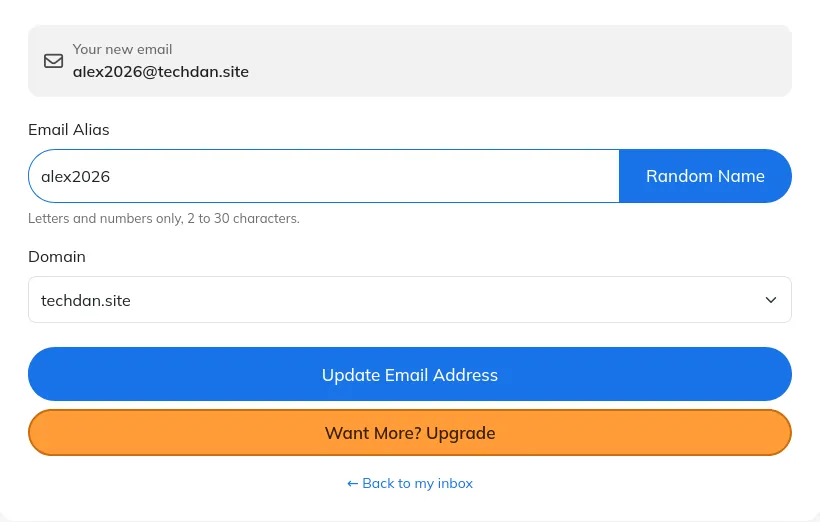
- Enter your alias. Type the name you want. Use letters and numbers only, or tap "Random Name" to generate one. If you are short on ideas, the random name generator builds a full name for you in one click.
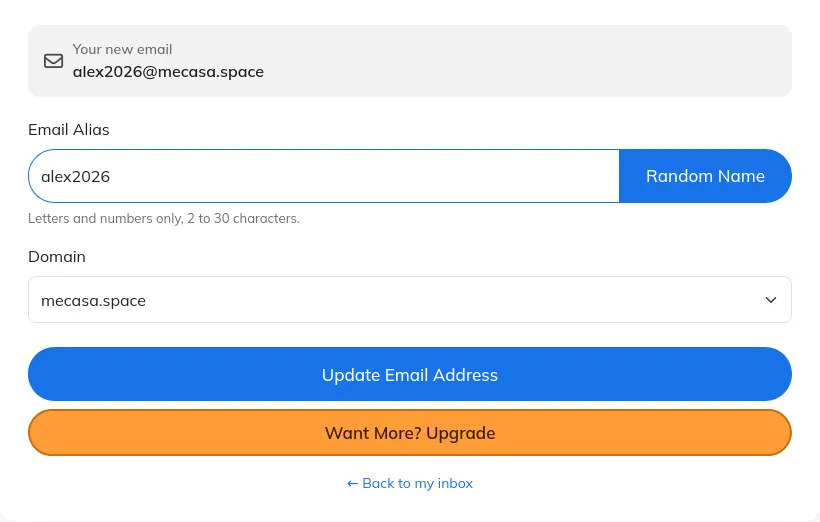
- Select a domain. Choose from the available free domains, or a premium or personal domain if your plan includes them.
- Click "Update Email Address". Your new address becomes your active inbox.
- Start receiving emails. Copy the address, use it on any website, and new messages appear on the home page automatically.
Why Use a Custom Temporary Email?
- Stop spam. Use a throwaway address for newsletters, downloads or free trials, so promotional emails never reach your personal inbox.
- Protect your privacy. Keep your real email address out of data leaks and marketing lists when you sign up for services you do not fully trust.
- Test apps and sign-up flows. Developers and testers can create readable, memorable addresses to check verification and notification emails quickly.
- Easy to remember. A name you choose yourself is far easier to read out, type or recall than a random string of characters.
Picking an Alias That Works
Short and plain beats clever. Letters and numbers only, 2 to 30 characters, no spaces and no special characters. An address like alex2026 reads fine on a form and is easy to say out loud. A long alias with mixed words invites typos, and a name that looks like a real person or a real company can cause confusion, so keep it clearly yours and clearly temporary.
One more thing to know before you switch: changing your address changes your active inbox. The old address stops being your current one. Depending on your plan, the site may list recent addresses under History on the home page, but you cannot reopen a timed address that already expired.
If you only need an address for a few minutes, a 10 minute mail address or a 20 minute mail address is simpler. If you want mail to land in your real inbox as well, set up temp mail forwarding.
Custom Temp Mail: Frequently Asked Questions
Can I choose my own temporary email address?
On this page you can type any alias you like and select a domain. You get the exact address you asked for, as long as the alias is allowed and the combination is free.
Is a custom temporary email address free?
Free domains are available to everyone. Paid plans include premium domains and extra features, such as using your own domain.
Which characters can I use in the alias?
Use letters and numbers only, with a length of 2 to 30 characters. Spaces and special characters are not allowed.
What happens to my old temporary email when I change it?
Your new address becomes your active inbox and the previous one is no longer used as your current address. Depending on your plan, the site may list recent addresses under History on the home page. You cannot reopen an expired timed address.
Should I use a temporary email for important accounts?
Temporary email is best for sign-ups, trials or verification codes. For banking, work or any account you need to recover later, use a permanent email address.